YouTube is the world’s largest classroom. From MIT lectures to coding tutorials, millions of students use it every day. But watching a 45-minute lecture is slow, especially when you need to review specific topics before an exam.
What if you could read the lecture instead? Or get an AI-generated outline of every topic covered? YouTube Text Tools makes this possible.
Step 1: Get the Full Transcript
Install YouTube Text Tools and open any lecture. The transcript appears automatically in a sidebar panel, synced with the video and fully searchable.
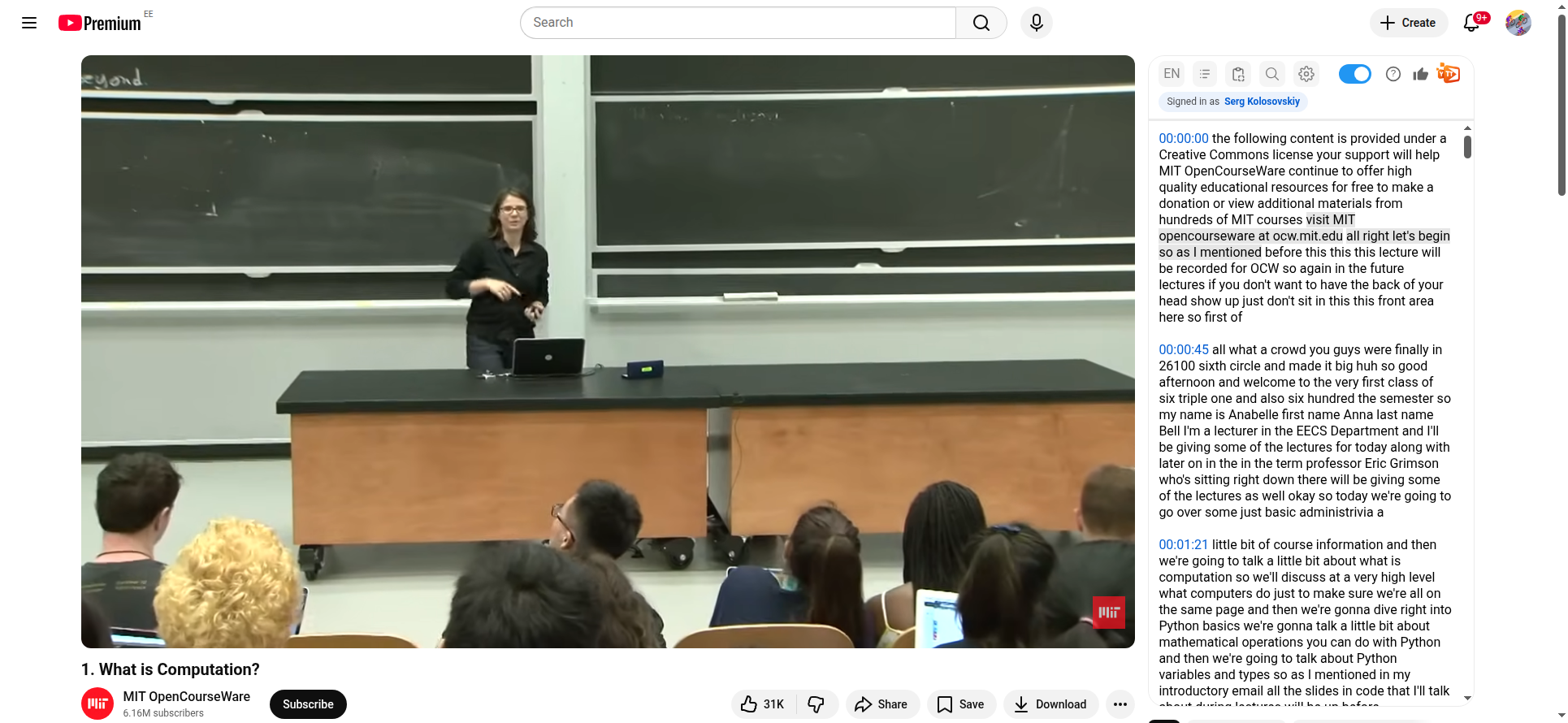
Every line is timestamped and clickable. Click any paragraph to jump to that exact moment in the video, which saves a lot of time when you’re reviewing specific sections.
Step 2: Search for Key Topics
Use the built-in search to find exactly what you need. Type a keyword and every match gets highlighted in the transcript, with arrow buttons to jump between matches.
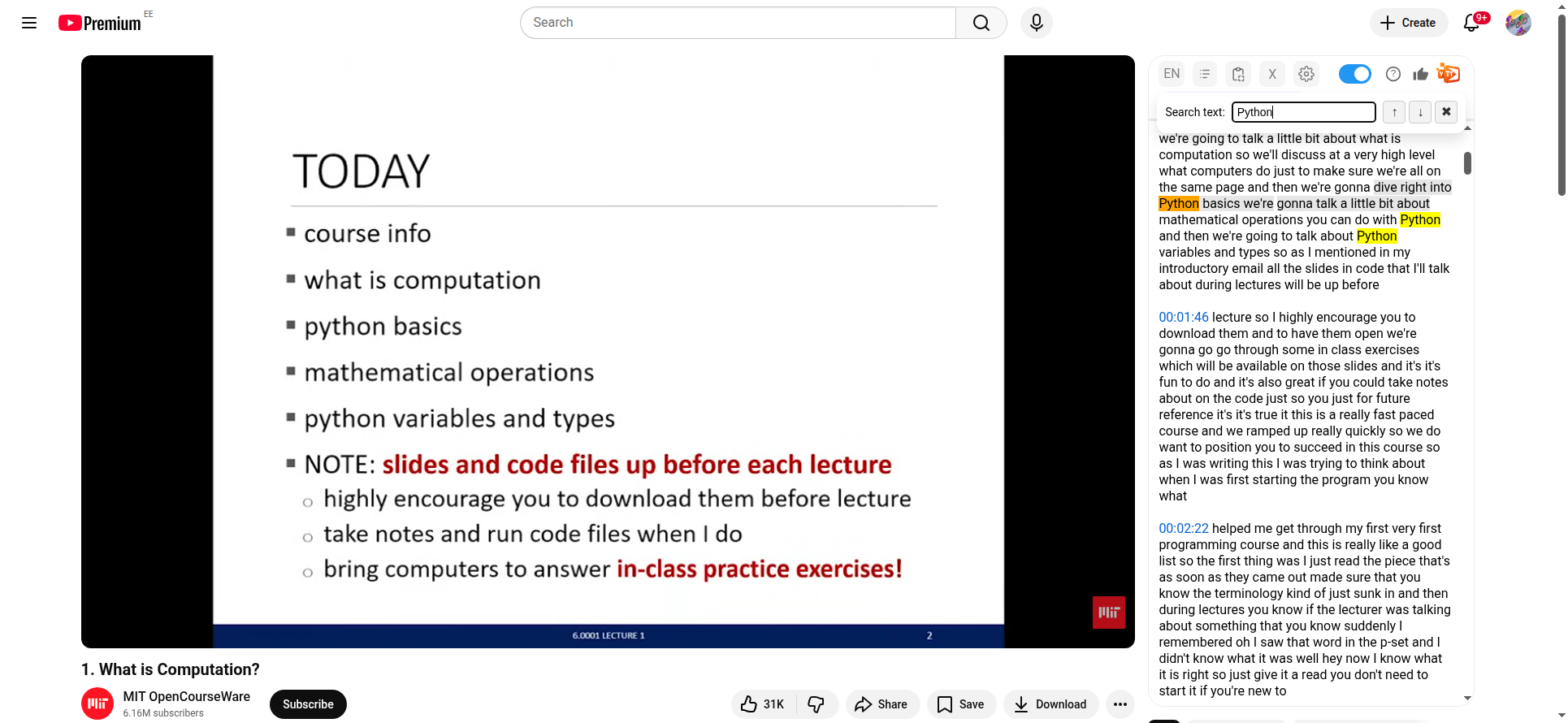
A few ways this helps during study sessions:
- Search for specific terms or concepts you need to review before an exam
- Quickly locate where a topic was discussed so you can take better notes
- Compare how different lectures cover the same concept by searching across videos
Step 3: Generate an AI Summary
Switch to the AI Summary view and click “Generate summary”. In seconds, you get a structured outline of the entire lecture, organized by topic with bullet points for each key concept.
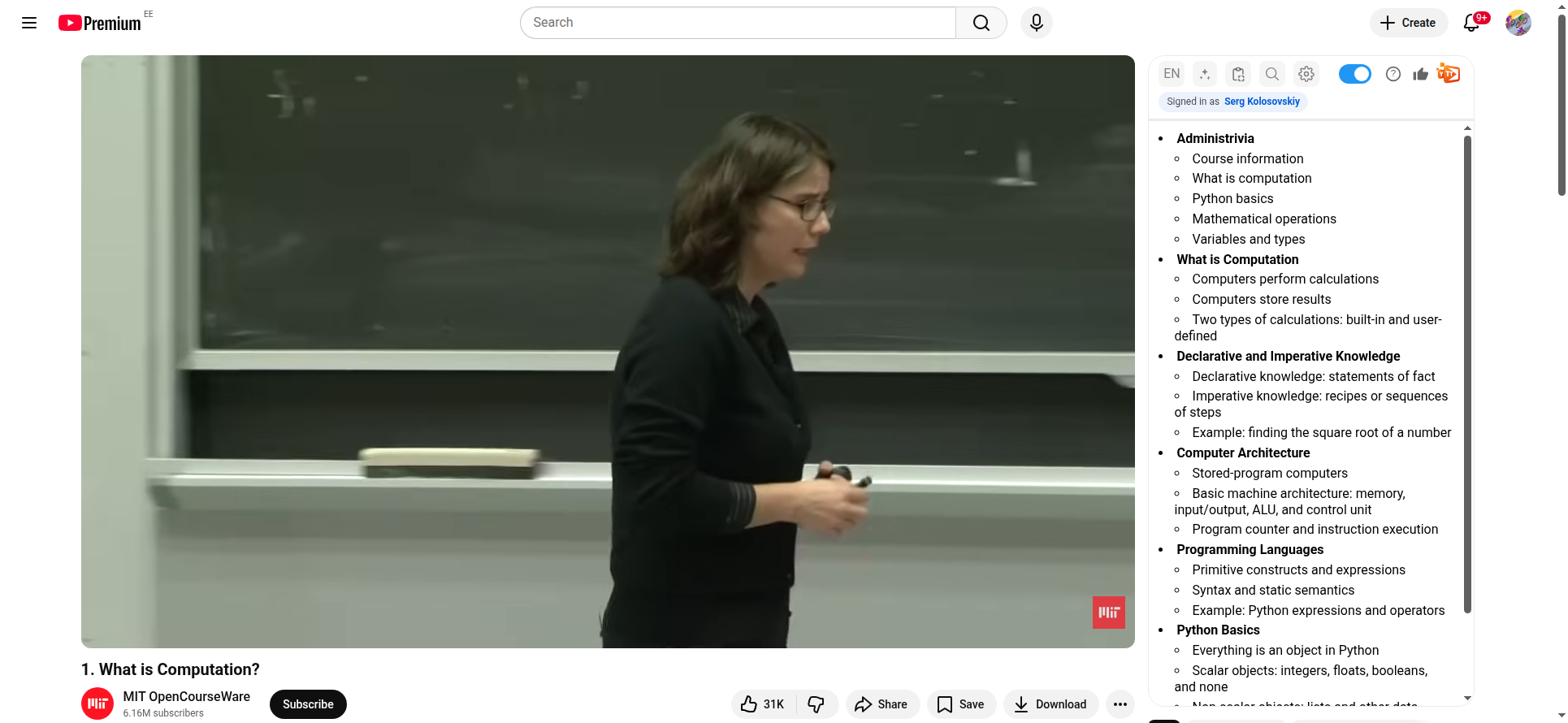
For a 43-minute introductory CS lecture, the summary breaks down into clear sections, from course logistics all the way through Python basics. And you can start using them as study notes right away.
You can use these summaries to:
- Preview a lecture before watching to understand what’s covered so you can focus
- Review after class to quickly refresh your memory on key points
- See how topics build on each other across a course by comparing lecture summaries
Step 4: Use Timestamped Summaries to Jump Around
The Timestamped AI Summary adds clickable timestamps to each section. Click any timestamp to jump directly to that part of the video.
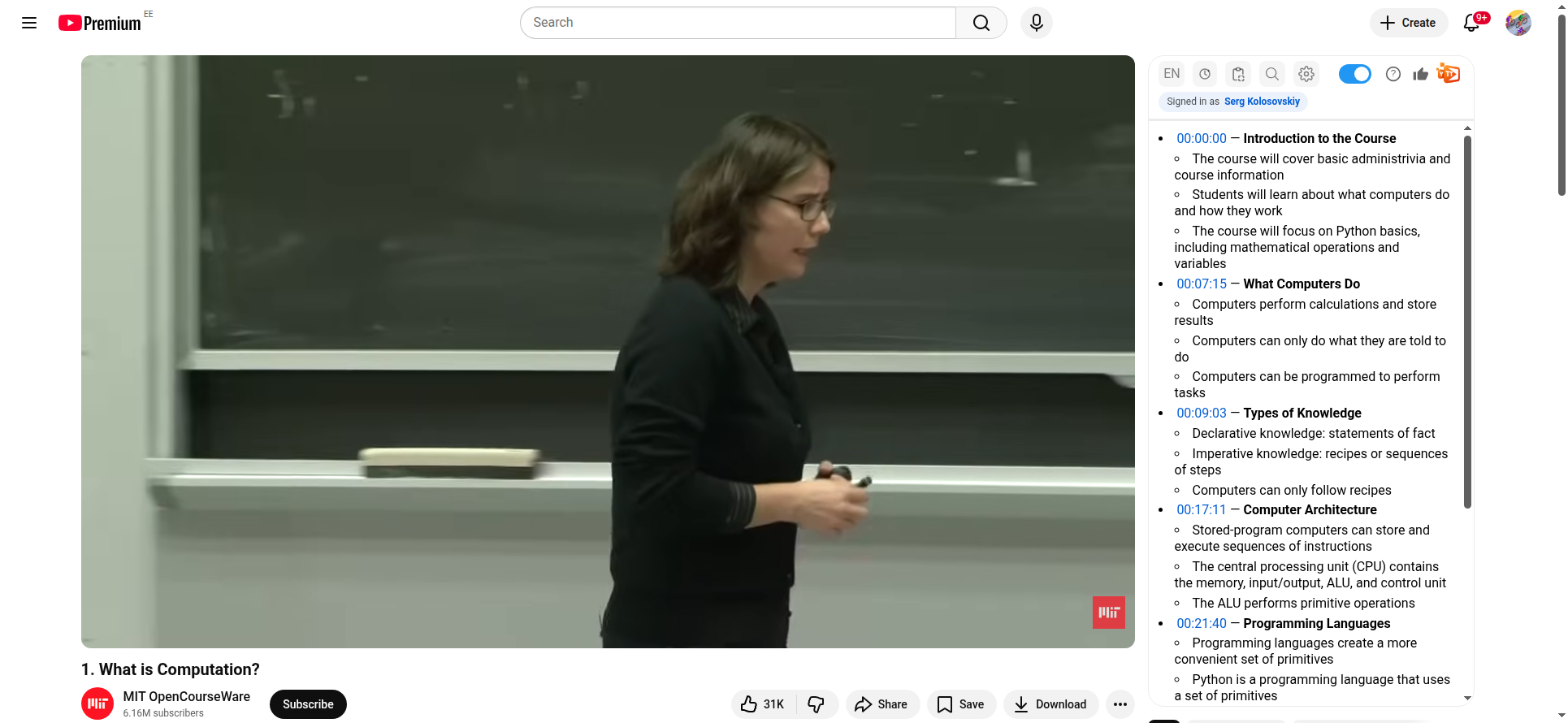
This makes targeted review much easier. You can skip the intro and jump straight to the content you need, or click the timestamp for “Types of Knowledge” to re-watch how declarative vs. imperative knowledge was explained. It’s also handy as a table of contents. You can see the whole lecture’s structure at a glance and plan your study time around it.
Step 5: Copy to ChatGPT for Deeper Study
Click the copy icon in the toolbar to copy the full transcript, then paste it into ChatGPT for custom study materials.
Here are some powerful prompts for students:
Create study notes:
Organize this lecture transcript into detailed study notes with headings and bullet points: [paste transcript]
Generate flashcards:
Create 20 flashcards (question on front, answer on back) from this lecture transcript: [paste transcript]
Practice quiz:
Write a 10-question multiple-choice quiz based on this lecture. Include answer explanations: [paste transcript]
Explain like I’m five:
Explain the main concepts from this lecture in simple terms a beginner would understand: [paste transcript]
Compare with textbook:
I’m studying [topic]. Compare what this lecture covers with the standard textbook approach and highlight any unique insights: [paste transcript]
The Complete Study Workflow
Here’s how to get the most out of YouTube lectures:
- Preview: Generate an AI summary before watching to know what’s coming
- Watch: Follow along with the transcript, click to seek when you get lost
- Search: Find and bookmark key concepts using the search feature
- Review: Re-read the timestamped summary as a study guide
- Deepen: Copy the transcript to ChatGPT for flashcards, quizzes, or explanations
This workflow turns a passive 45-minute lecture into an active study session where you control the pace and focus.