Most long YouTube videos aren’t worth watching end to end. AI summaries let you skim the main points first, then decide whether to watch the whole thing or skip ahead to what’s relevant.
YouTube Text Tools has built-in AI summarization that works right inside YouTube. There’s also a one-click copy feature that works well with ChatGPT.
Three View Modes
YouTube Text Tools gives you three ways to view video content. Click the view selector in the toolbar to switch between them:
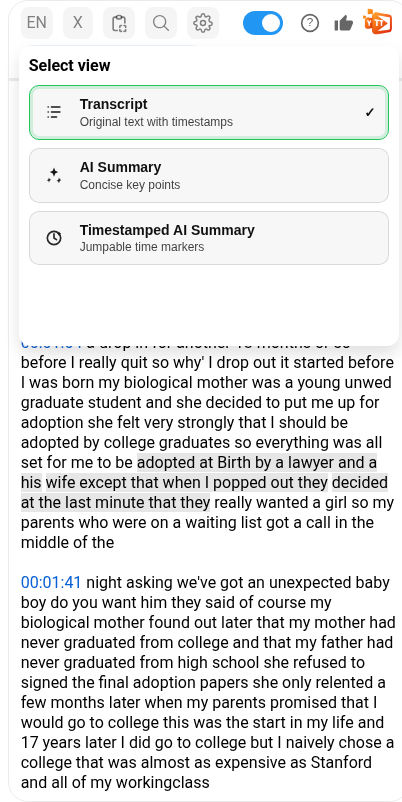
- Transcript: The full original text with timestamps (default view)
- AI Summary: Concise key points extracted from the video
- Timestamped AI Summary: Key points organized by timestamp, so you can jump to specific sections
AI Summary
Switch to the AI Summary view and click “Generate summary” to get a concise breakdown of the video’s key points. The summary organizes everything into sections with bullet points, which makes it easy to tell what a video covers without watching it.
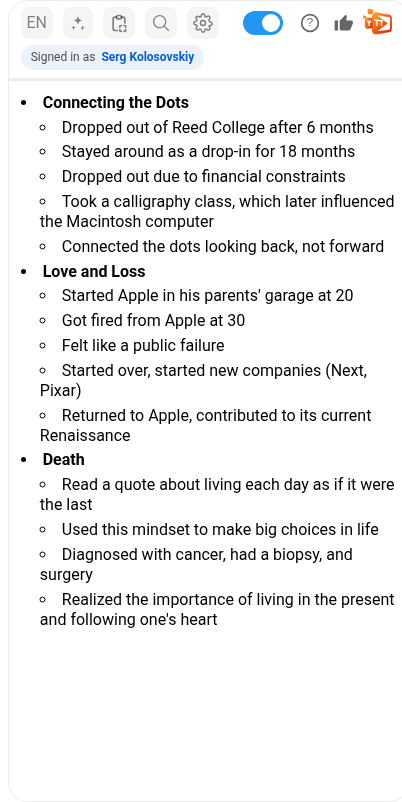
For example, Steve Jobs’ famous Stanford Commencement Address gets summarized into three sections, Connecting the Dots, Love and Loss, and Death, with the most important points from each story.
Summaries are cached, so once generated, they load instantly the next time you visit the same video.
Timestamped AI Summary
The Timestamped AI Summary goes further by linking each section to a specific moment in the video. Each timestamp is clickable. Click it to jump directly to that part.
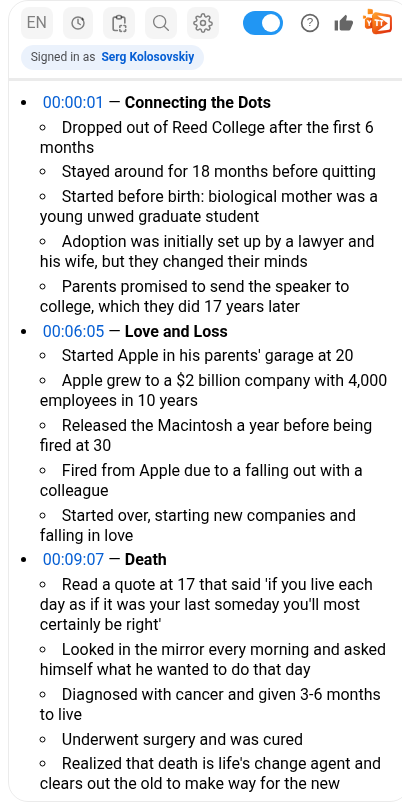
This works well when you’re:
- Skimming long videos: Read the summary, then jump to the section that interests you
- Trying to find a specific topic, since you’ll see exactly when each one comes up
- Taking notes: Reference specific moments with precise timestamps
- Revisiting a video you’ve already seen but need to locate one part of
Copy Transcript to ChatGPT
Sometimes you need more than a pre-built summary. YouTube Text Tools lets you copy the full transcript with one click (using the copy icon in the toolbar), then paste it into ChatGPT or any other AI tool for custom analysis.
Here are some powerful prompts to try:
Quick summary:
Summarize this transcript in 3 bullet points: [paste transcript]
Key takeaways:
What are the key takeaways from this video? [paste transcript]
Study notes:
Create detailed study notes from this lecture transcript, organized by topic: [paste transcript]
Translation:
Translate this transcript to Spanish: [paste transcript]
Quiz generation:
Create 5 multiple-choice questions based on this transcript to test comprehension: [paste transcript]
Meeting notes:
Extract action items and decisions from this meeting transcript: [paste transcript]
Because you’re working with the raw transcript, you can ask follow-up questions, request different formats, or combine it with other context you already have.
Copy Transcript for Other Uses
The one-click copy isn’t just for AI tools. Copied transcripts come in handy for:
- Blog posts: Quote or reference specific parts of a video
- Research papers: Cite video content with accurate text
- Social media: Pull memorable quotes for sharing
- Meeting notes: Document video calls and presentations
- Accessibility: Share text versions with people who prefer reading
Built-in AI vs. ChatGPT: When to Use Each
| Built-in AI Summary | ChatGPT with Transcript | |
|---|---|---|
| Speed | One click, instant | Copy + paste + prompt |
| Best for | Quick overview | Deep analysis, custom questions |
| Timestamps | Yes (timestamped view) | Only if you include them |
| Custom questions | No | Yes, ask anything |
| Cost | Free (monthly limit) | Requires ChatGPT access |
Use the built-in AI summary when you want a quick overview of what a video covers. Use ChatGPT when you need to dig deeper: ask specific questions, generate study materials, or transform the content into a different format.